 GameWiki
GET YOUR BEARINGS
About Split Fiction
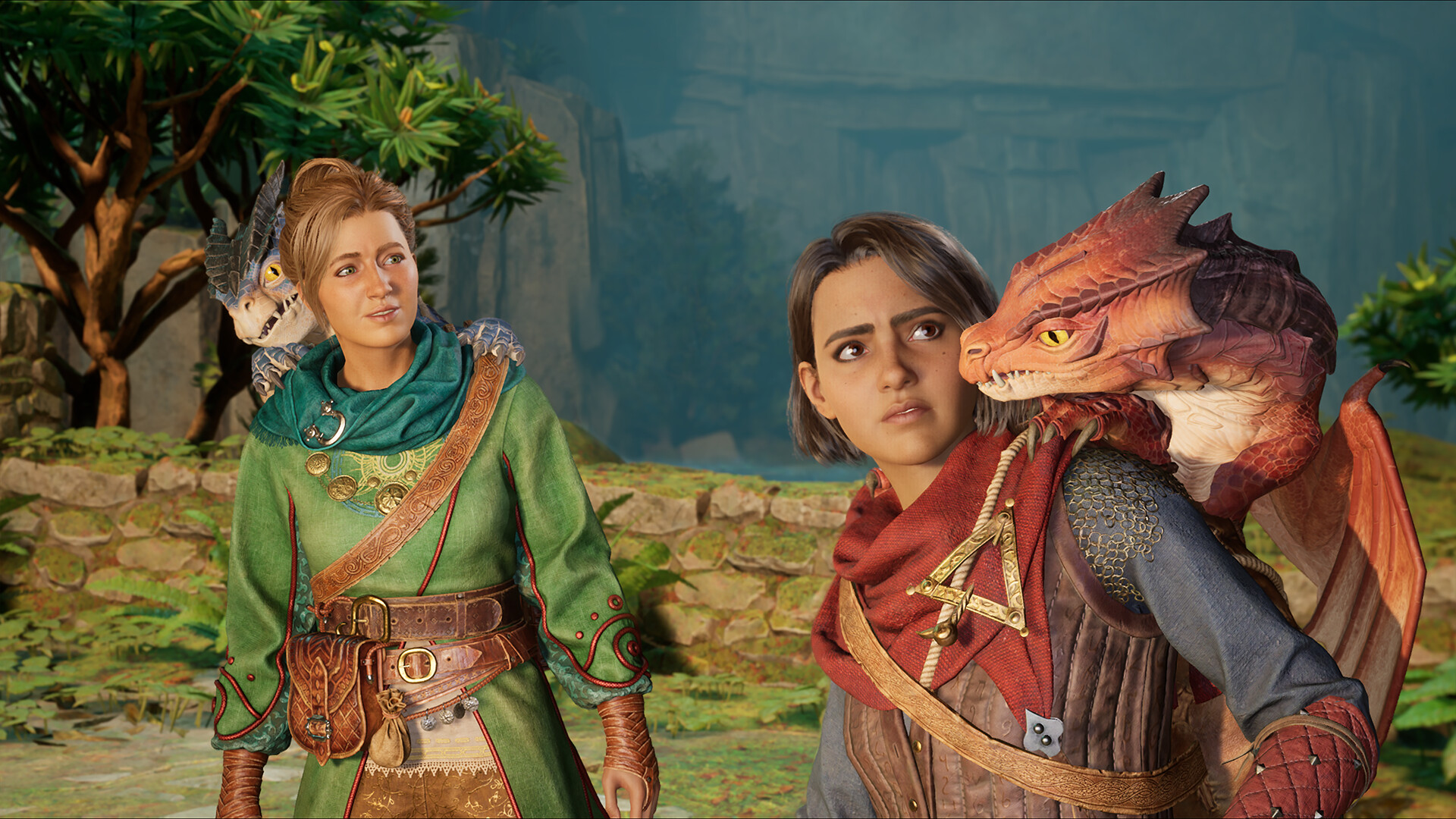
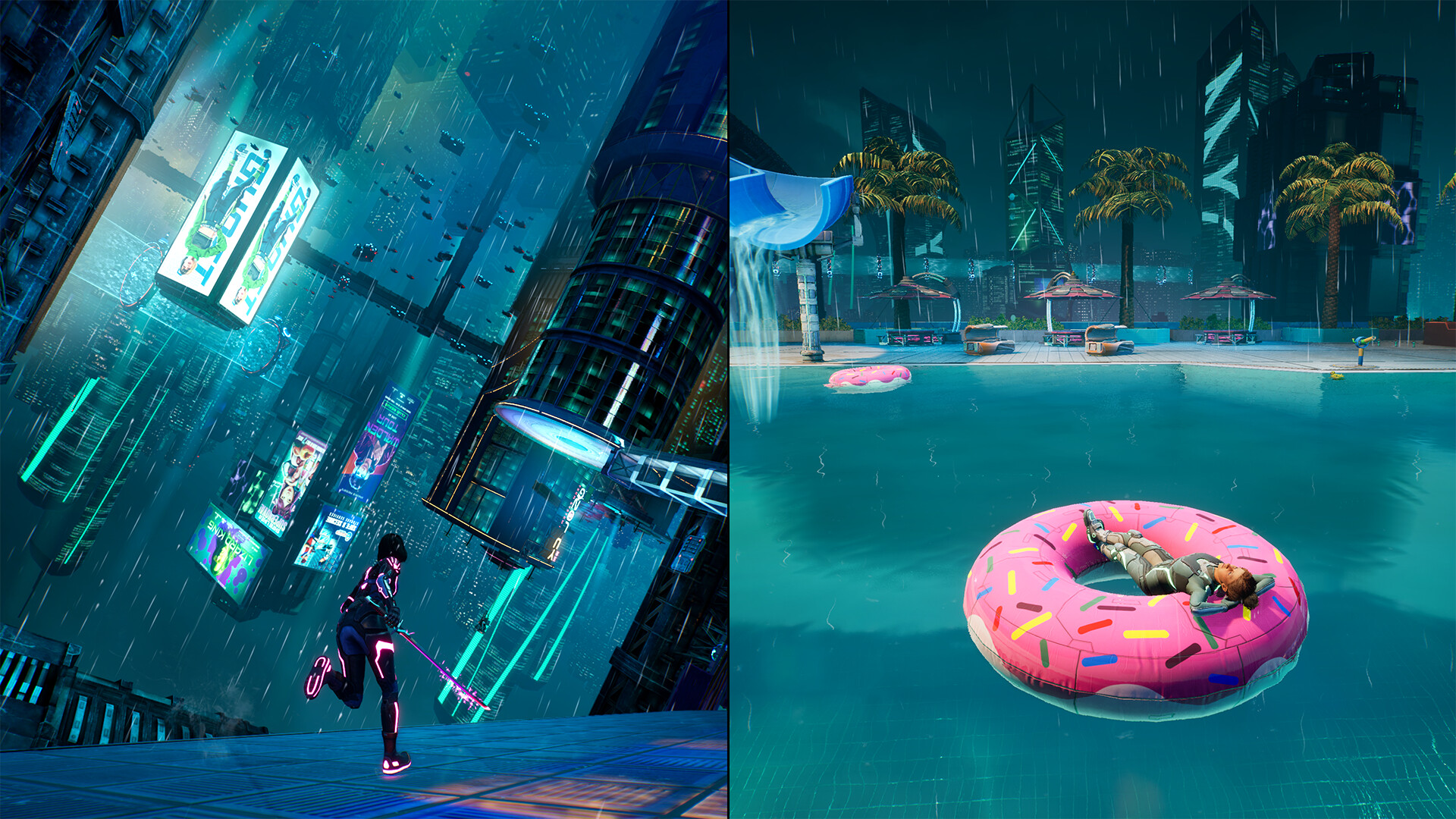
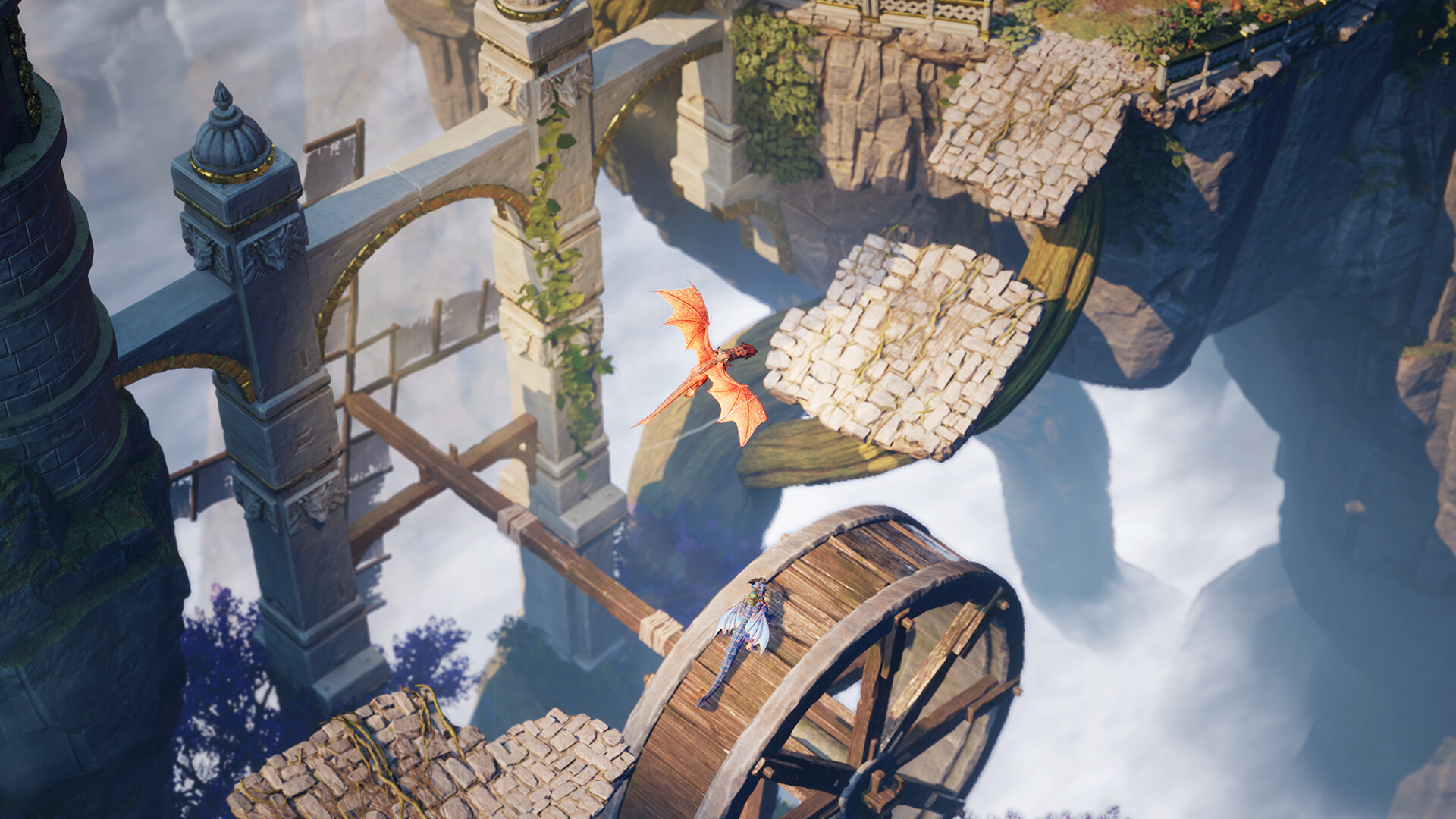
Split Fiction drops two writers, Mio and Zoe, into the worlds they imagined—sci‑fi and fantasy—after a machine traps them inside their own stories. The game forces them to switch between dragons, cyber‑ninjas, trolls and hover‑cars, keeping the action constantly surprising.
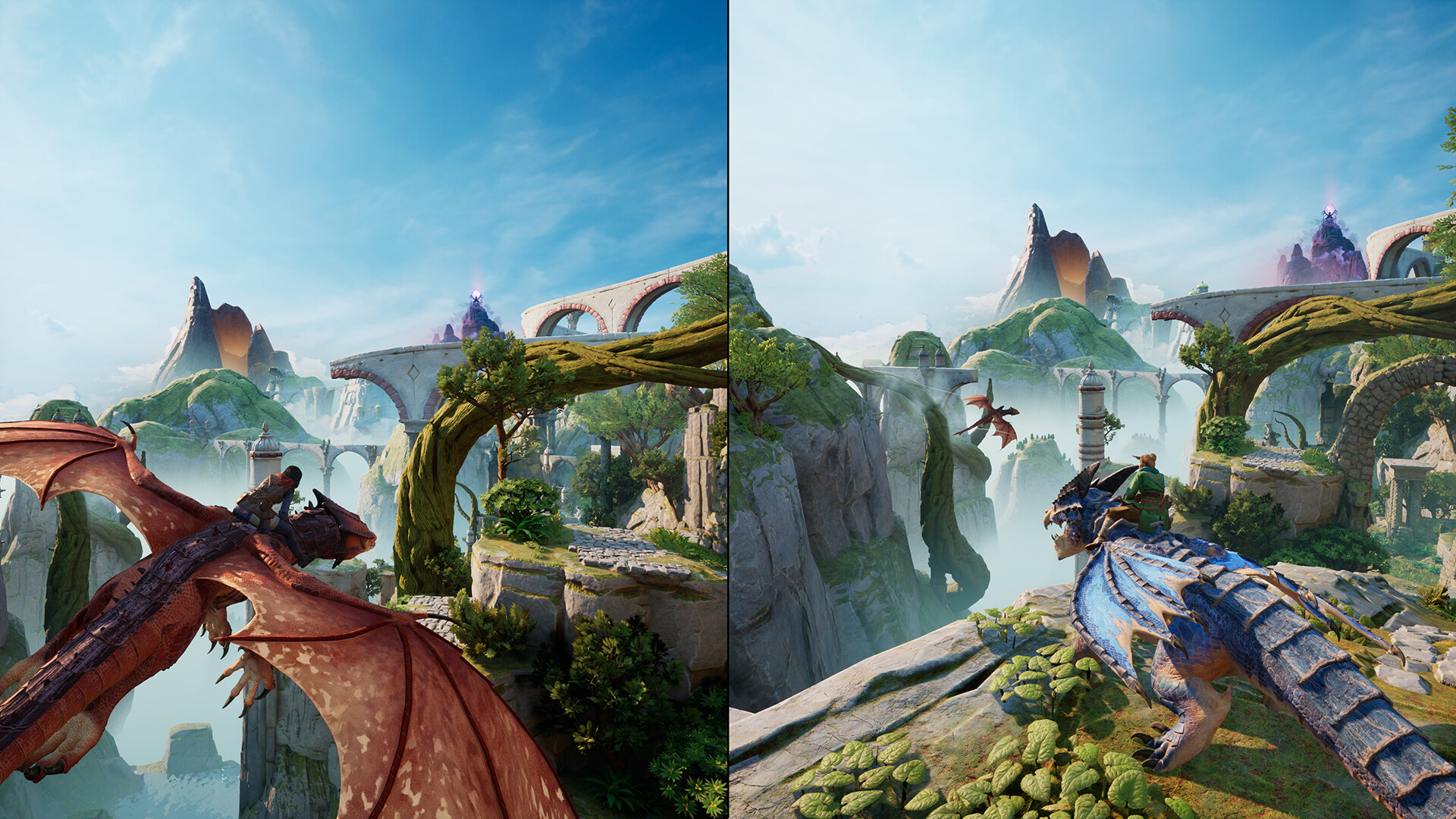
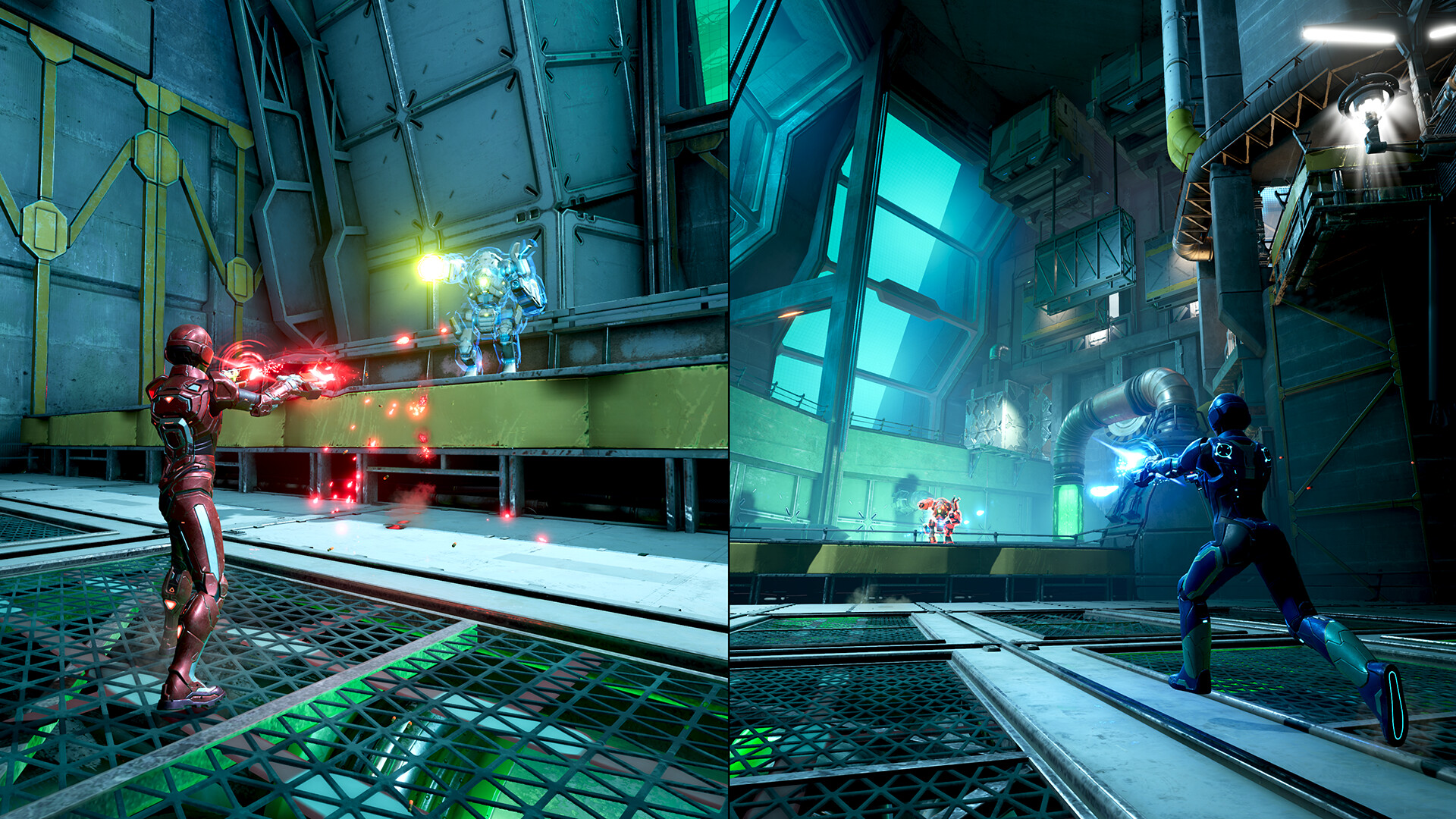
Developed by Hazelight Studios, the title is built for two‑player cooperation with local split‑screen or online co‑op. It runs on Windows, supports full controllers, and includes a range of accessibility and visual options.
01 / THE GUIDE
Story Premise
Mio writes sci‑fi and Zoe writes fantasy; a machine meant to steal ideas instead traps them inside their own narratives. Their objective is to escape while keeping their memories intact.
The narrative jumps between contrasting settings, so the duo must adapt to dragons, trolls, hover‑cars and cyber‑ninjas as they search for a way out.
- Discuss the genre cues before each world shift to anticipate the type of challenge.
- Watch for dialogue that signals which writer’s world you are entering.
02 / THE GUIDE
Co‑op Gameplay
The experience is centred on two‑player cooperation; both participants must combine abilities to solve puzzles and defeat enemies. Local split‑screen and online co‑op are both supported.
Progression requires the partners to stay together, communicate which abilities are active, and coordinate actions to overcome platforming and combat obstacles.
- Stay close to your partner during platforming sections to avoid accidental falls.
- Use voice chat or a quick call to announce ability usage before major attacks.
03 / THE GUIDE
Platform Support
Split Fiction runs on Windows PCs and offers full controller compatibility, including DualShock and DualSense devices. Steam Cloud and Family Sharing are also listed as features.
No macOS or Linux support is mentioned, so the game is limited to Windows environments, though any standard gamepad recognised by Steam can be used.
- Enable Steam Cloud in the settings to keep progress synced across multiple PCs.
- Test your controller before starting a session to ensure all inputs register.
04 / THE GUIDE
Accessibility Features
Captions, camera‑comfort options and colour alternatives are provided to accommodate a range of player needs. These settings can be adjusted in‑game without affecting core gameplay.
HDR support is listed, offering enhanced visual clarity for players with compatible displays.
- Turn on captions if dialogue becomes hard to follow during fast action.
- Activate colour alternatives if enemy outlines are difficult to distinguish.
05 / THE GUIDE
Audio‑Visual Options
Stereo and surround‑sound options let players choose their preferred audio layout, while HDR availability improves contrast and colour depth across the shifting worlds.
Steam Achievements and Trading Cards are listed as optional goals, adding extra collection incentives for completion‑oriented players.
- Select surround sound for clearer directional cues during combat.
- Enable HDR if your monitor supports it to better differentiate environments.
COMMUNITY
Player discussion