 GameWiki
GET YOUR BEARINGS
About Musical Slime
Musical Slime turns your desktop into a lively music‑filled space. A hand‑drawn slime reacts to every track you play, bouncing to the beat and adding cute note effects that brighten any work or study session. The game runs as a non‑intrusive window that can sit atop other applications, letting you enjoy music without breaking focus.
Beyond the visual fun, the title includes a full music player, playlist tools, a toggleable rhythm minigame, and deep Steam integration for sharing playlists and showing activity to friends. Customization options let you resize, flip, recolor, and position the slime exactly how you like it.
01 / THE GUIDE
Music‑Driven Visuals
When a song plays, the slime moves in perfect sync with the rhythm, beats, and mood, creating playful musical‑note effects that appear on cue. Each melody generates its own animation, turning ordinary listening into a vibrant desktop display. The visual response is purely reactive; there are no separate controls needed to trigger the effects, making the experience seamless as the slime follows the music automatically.
- Observe how different genres affect the slime’s movement to pick tracks that match your desired visual vibe.
- Try adjusting the slime’s size to see how larger or smaller animations fill your screen.
02 / THE GUIDE
Integrated Music Management
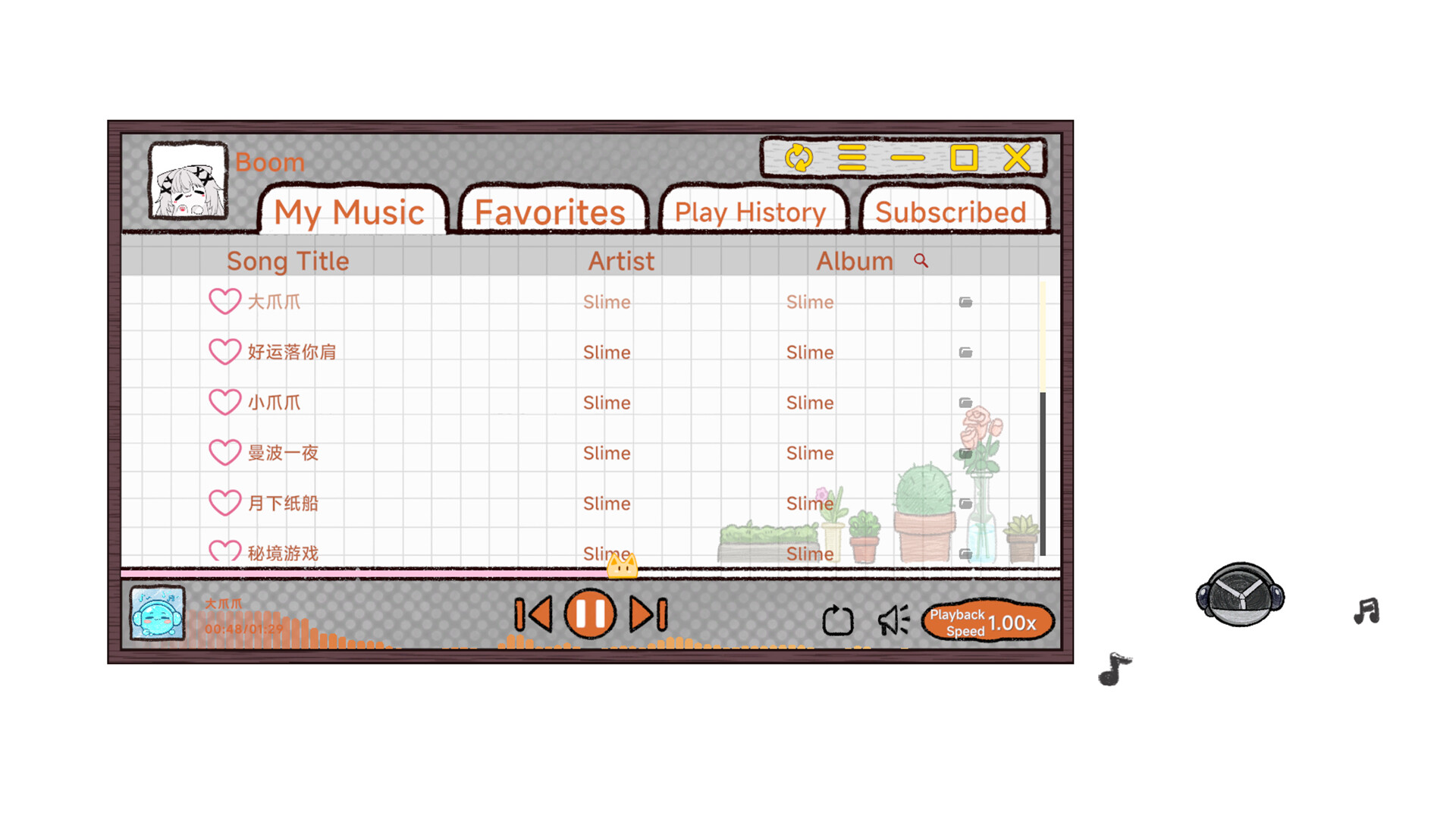
The game includes a built‑in player that lets you favorite tracks, view playback history, and sort albums. You can create playlists directly inside the app and let the slime accompany each song. All music handling stays within the program, so you don’t need external software to manage your library while the slime is on screen.
- Use the favorite function to quickly access your most‑liked songs for instant slime entertainment.
- Check the playback history to revisit tracks that produced especially fun slime animations.

03 / THE GUIDE
Optional Rhythm Challenge
A toggleable rhythm minigame lets you pause work and test your timing with the slime and your chosen tracks. Switching to the minigame is a single click, offering a casual break without leaving the desktop. The minigame is optional and can be turned off at any time, keeping the slime’s core companion role intact when you prefer just the visual sync.
- Enable the minigame when you need a short, stress‑relieving break from tasks.
- Experiment with different songs to see how varying tempos affect the challenge.
04 / THE GUIDE
Workshop & Friend Integration
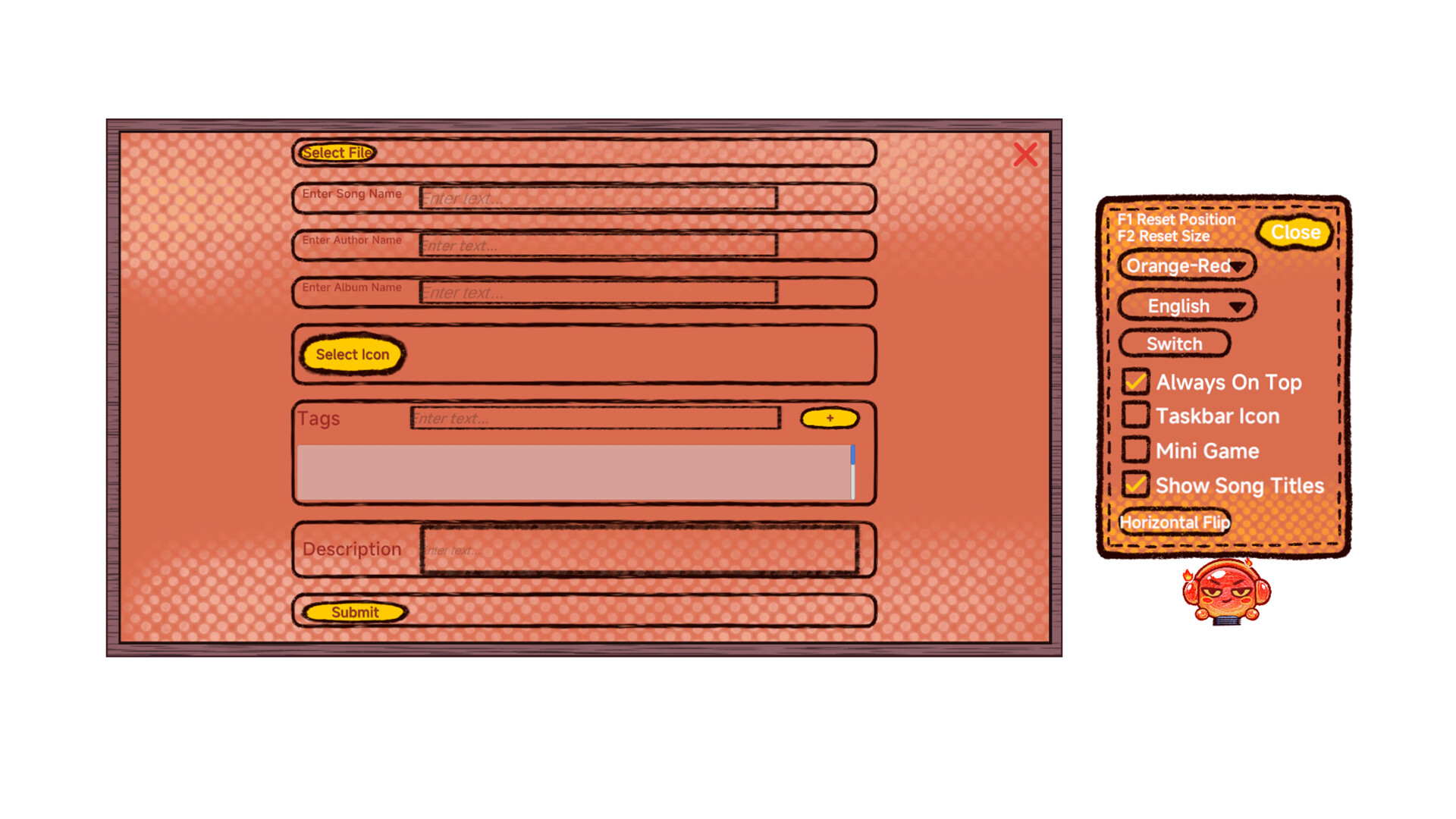
Steam Workshop support lets you upload and download curated music packs and playlists, expanding the slime’s repertoire with new genres. You can browse community‑shared content at any time. Activity syncs with Steam friends, so they can see your latest creations and slime interactions directly in their friend feed, fostering shared music experiences.
- Browse the Workshop for genre‑specific playlists that match your mood.
- Share your own playlist to see how other players’ slimes react to your selections.
05 / THE GUIDE
Personalization & Desktop Integration
You can move the slime by left‑click‑dragging, zoom with mouse wheel, and reset position or size using F1 and F2. Five built‑in color schemes, horizontal flipping, and always‑on‑top window options let the slime fit any desktop aesthetic. Multi‑monitor quick switching, a system‑tray icon, and Steam Family Sharing ensure the slime stays accessible and shareable across setups.
- Use F1/F2 shortcuts to keep the slime visible after changing monitor configurations.
- Toggle the always‑on‑top window when you need the slime visible over full‑screen applications.


COMMUNITY
Player discussion