 GameWiki
GET YOUR BEARINGS
About McOsu
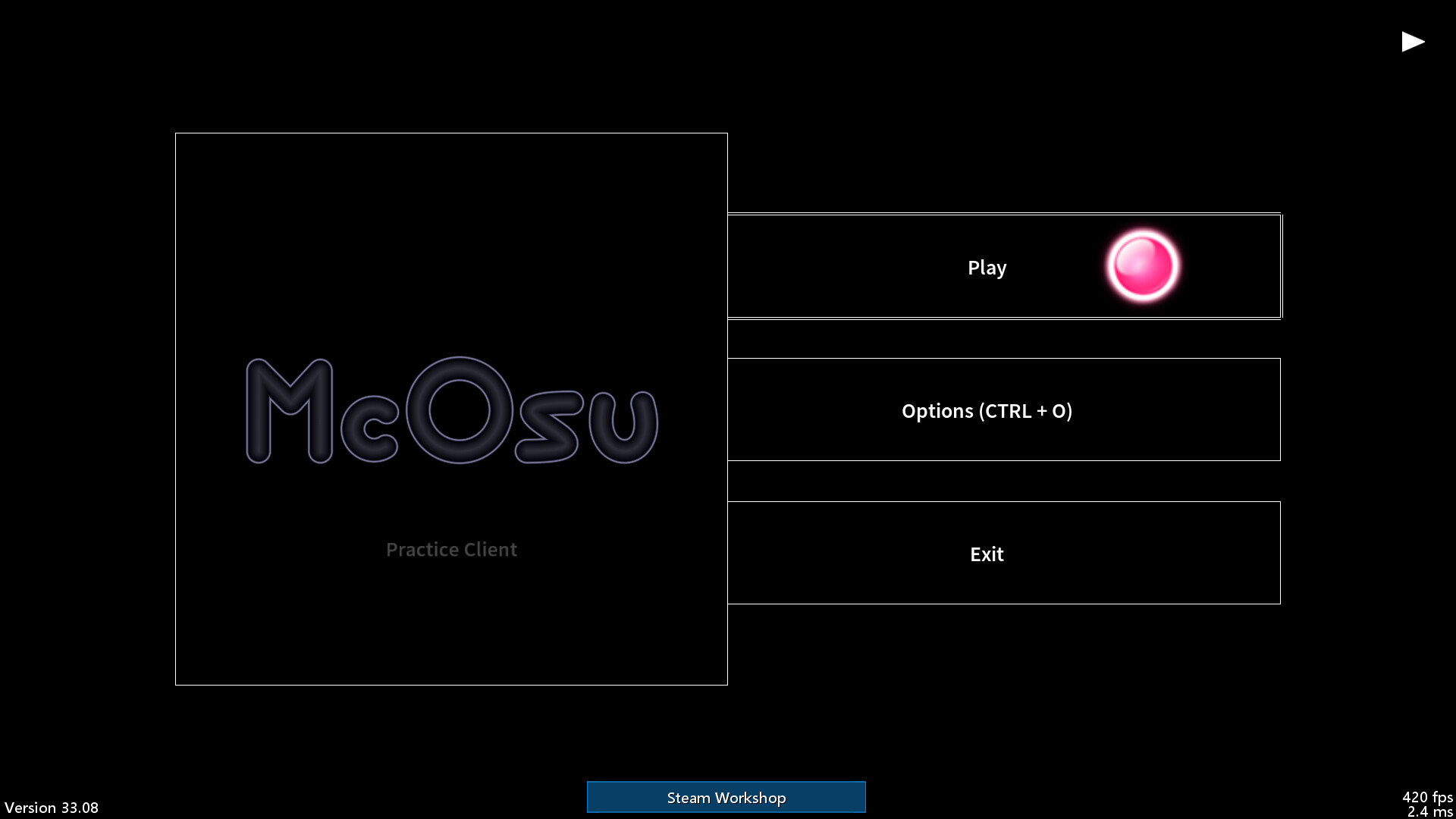
McOsu is a free, open‑source rhythm game client that plays osu! standard beatmaps. It is developed independently of osu! and focuses on practice tools and deep customisation rather than online competition.
The client runs on Windows and Linux, supports tracked controllers and a VR mode, and can load beatmaps from an existing osu! stable installation or from third‑party sources. Offline profiles record performance points for personal tracking.
01 / THE GUIDE
Unlimited Customisation
Players can open a console with Shift + F1 to adjust options while a map is playing. Beatmap parameters such as Approach Rate, Circle Size, Overall Difficulty and HP Drain can be overridden for focused practice.
A speed/BPM slider lets users change tempo on the fly, and quick‑save/load (Shift + F6/F7) lets them jump to any point in a map instantly, enabling repeated attempts of difficult sections.
- Lower AR to practise early‑note timing, then raise it to test reaction speed.
- Use quick‑save before a dense stream, then reload to refine accuracy.
02 / THE GUIDE
Beatmap Loading and Management
If osu! stable is installed, McOsu automatically reads beatmaps from its default folder, though users may specify an alternative path. The client also works without osu! stable, but then beatmaps must be placed manually.
Creating an official osu! account is not required; beatmaps can be downloaded from third‑party mirrors. A Steam Community Guide explains how to manage beatmaps without the official client.
- Keep a dedicated folder for practice maps to avoid mixing with casual collections.
- Follow the Steam guide to add new maps when osu! stable is absent.
03 / THE GUIDE
Experimental Mods
McOsu includes experimental mods such as Wobble, Jigsaw, First Person, Playfield Flipping and Reverse Sliders. These can be toggled during play with F1 and Ctrl + O, allowing on‑the‑fly changes.
Because they are labelled experimental, the mods are not part of the official osu! experience but provide unique visual challenges that can aid specific aspects of timing and pattern recognition.
- Activate one mod at a time to see its direct effect on hit timing.
- Observe how each mod alters visual feedback before trying another.
04 / THE GUIDE
VR and First‑Person 3D Modes
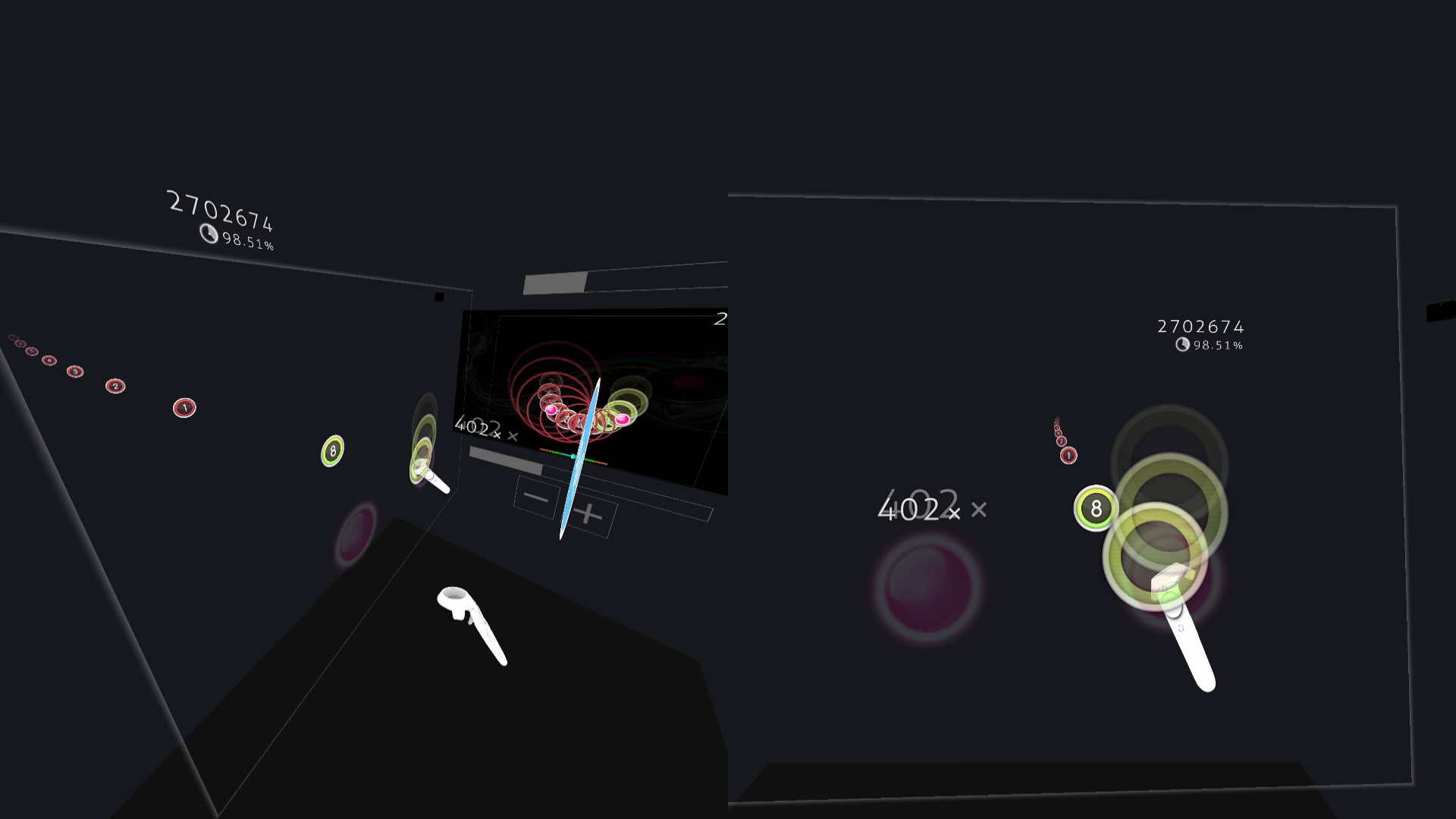
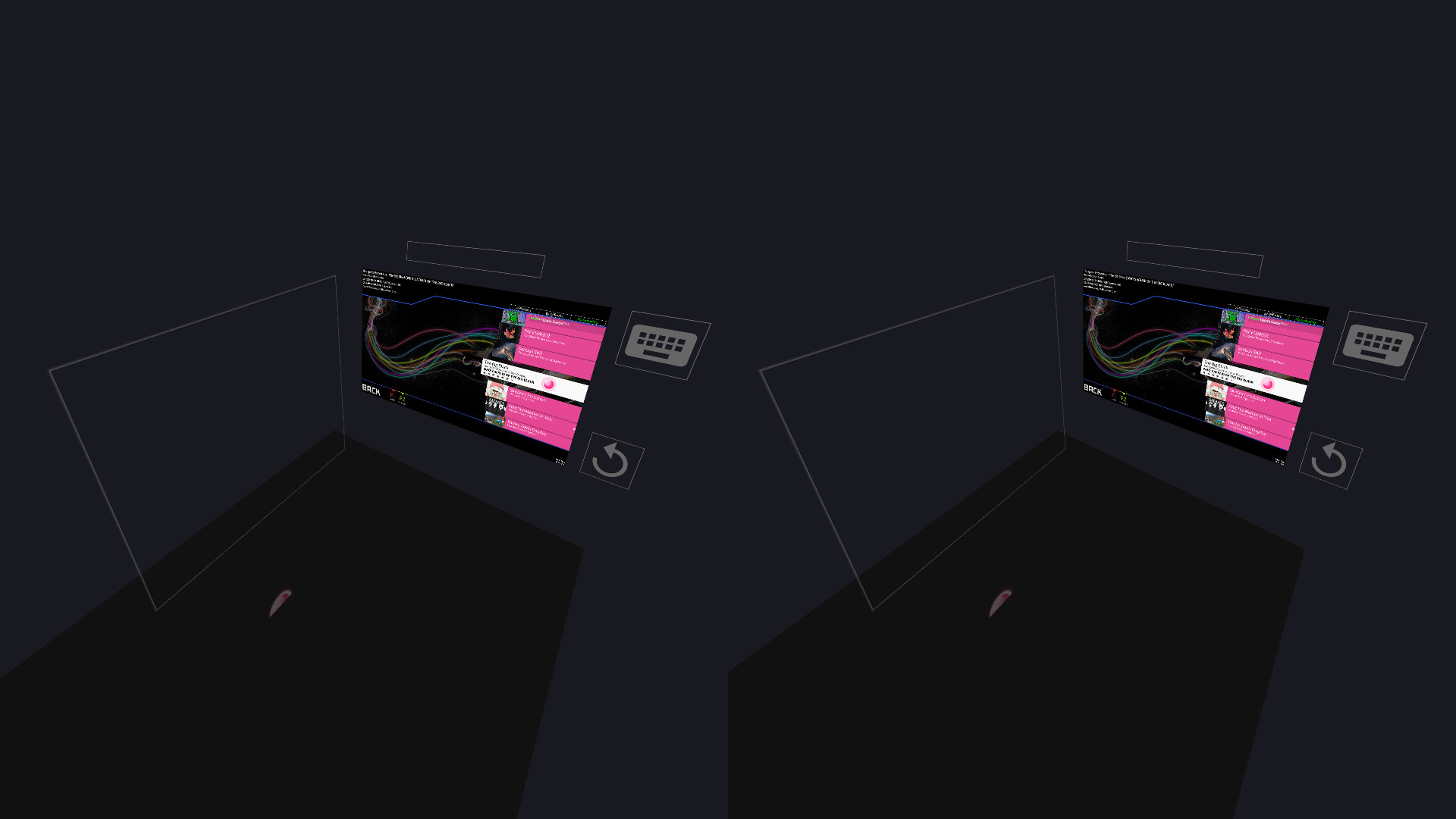
The client offers a dedicated VR gamemode and a First‑Person 3D (FPoSu) mode, extending the usual 2‑D circle‑clicking into immersive environments that use tracked controller input.
Both modes rely on the tracked controller support listed for the client and share the same customisation options as standard play.
- Begin with standard mode to learn map timing before switching to VR.
- Adjust HP Drain in settings if the 3‑D view feels visually demanding.
05 / THE GUIDE
Offline Profiles and PP Counter
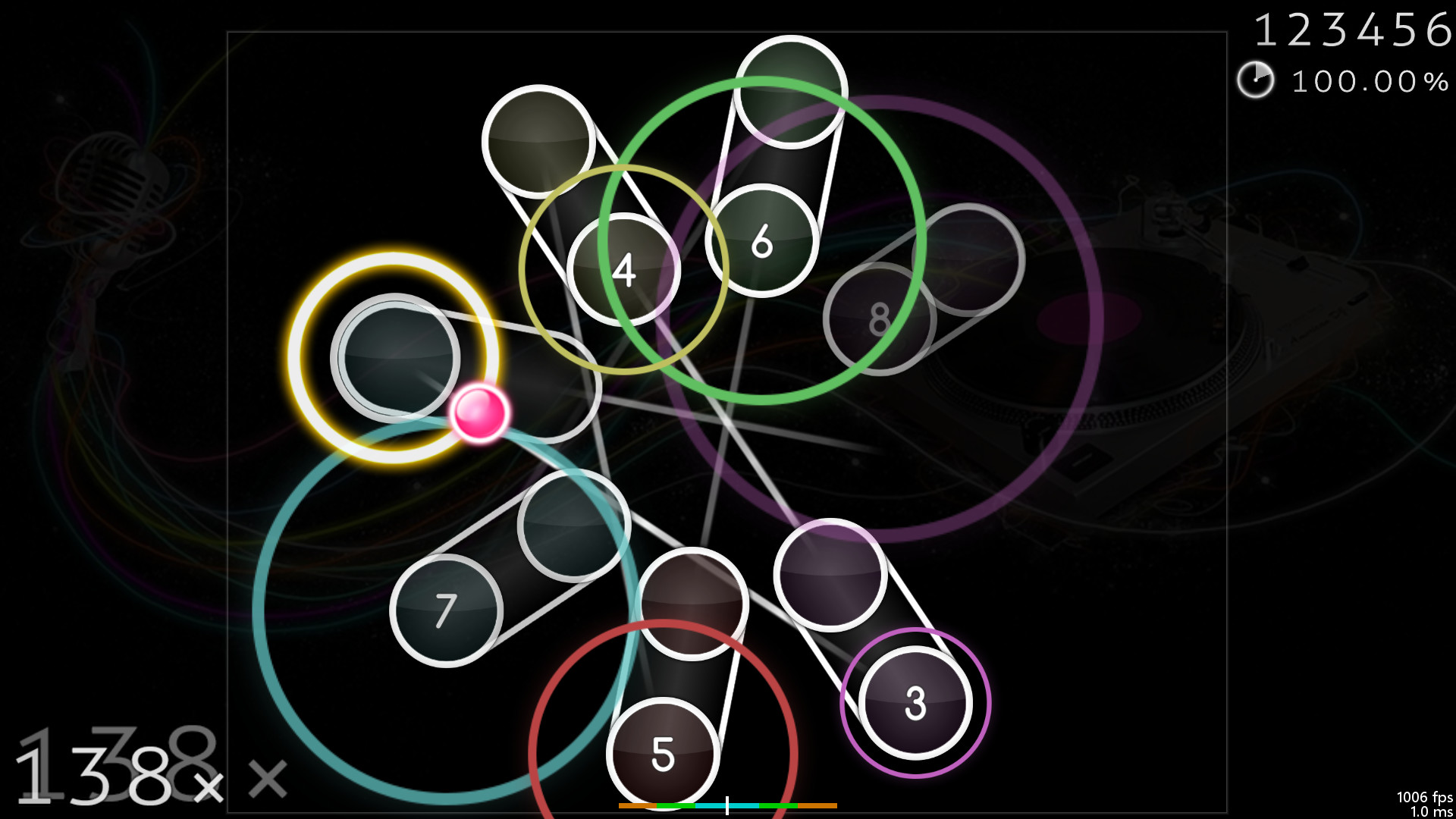
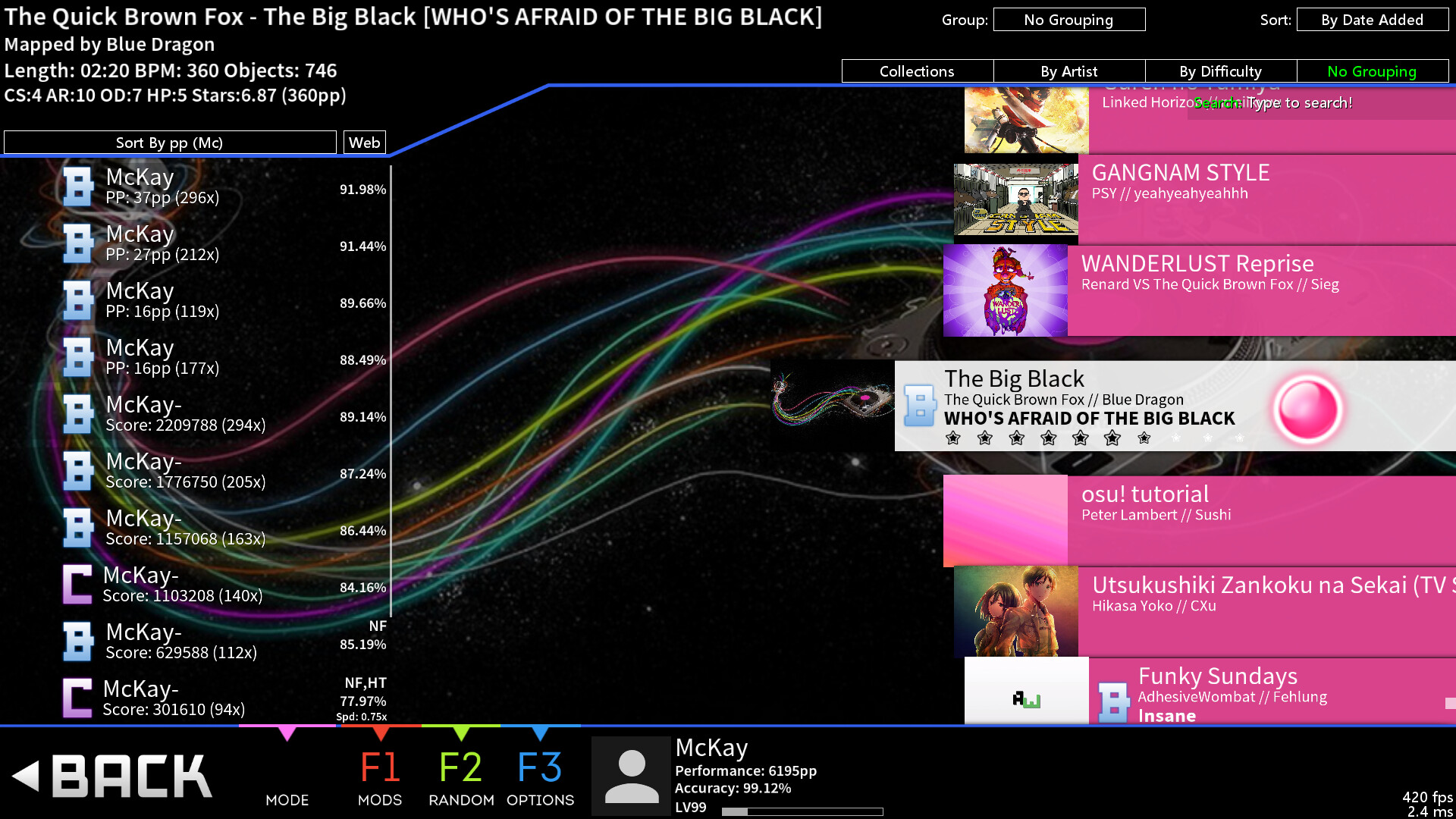
McOsu tracks performance points (pp) with a live overlay and a ranking screen, storing results in unlimited offline profiles. This lets players monitor progress without an online account.
The built‑in pp counter updates in real time, providing immediate feedback on each playthrough and allowing comparison across sessions.
- Review the ranking screen after a session to spot consistency trends.
- Create separate offline profiles for different difficulty tiers to compare performance.
COMMUNITY
Player discussion