 GameWiki
GET YOUR BEARINGS
About FlowScape
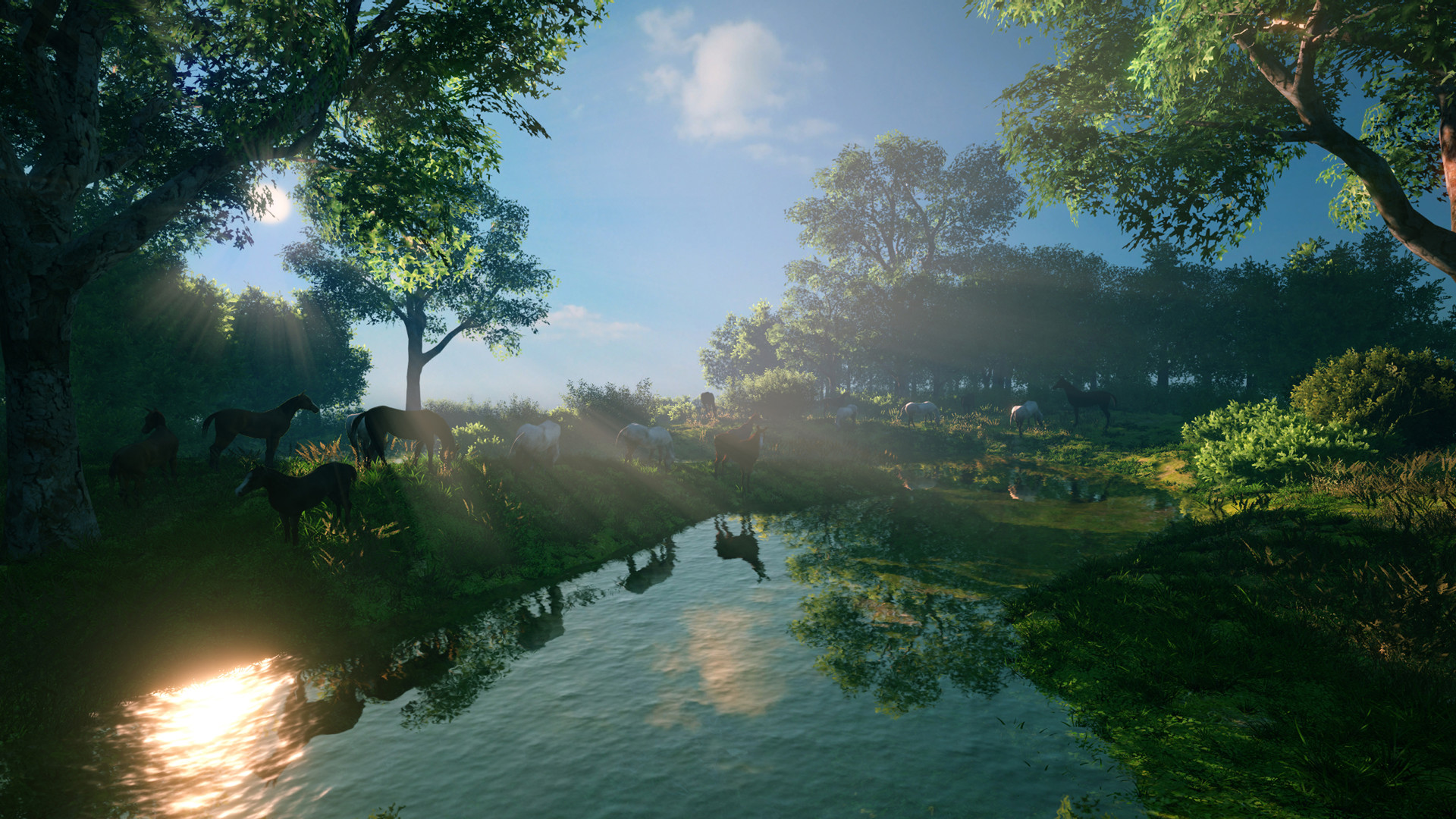
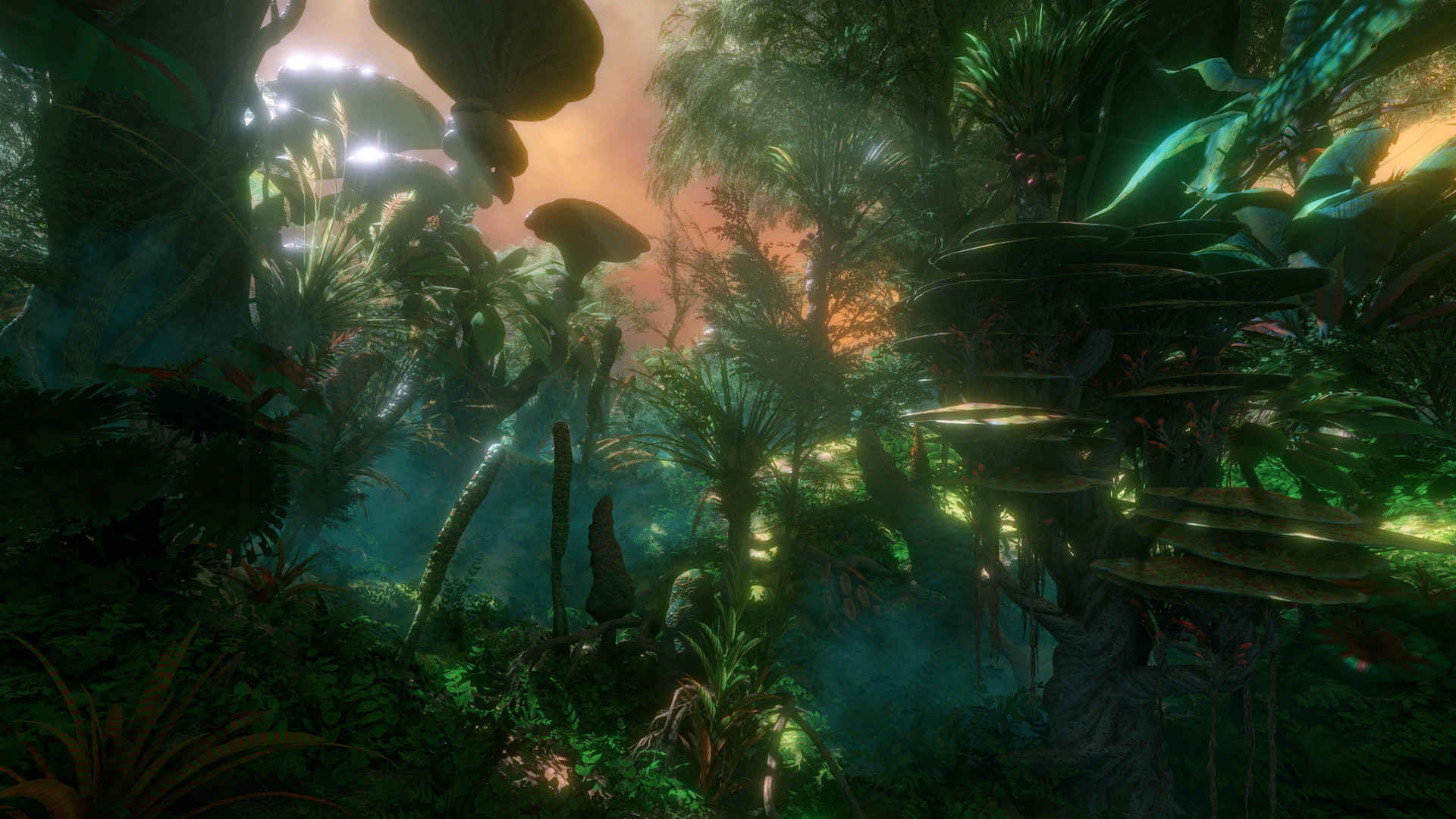
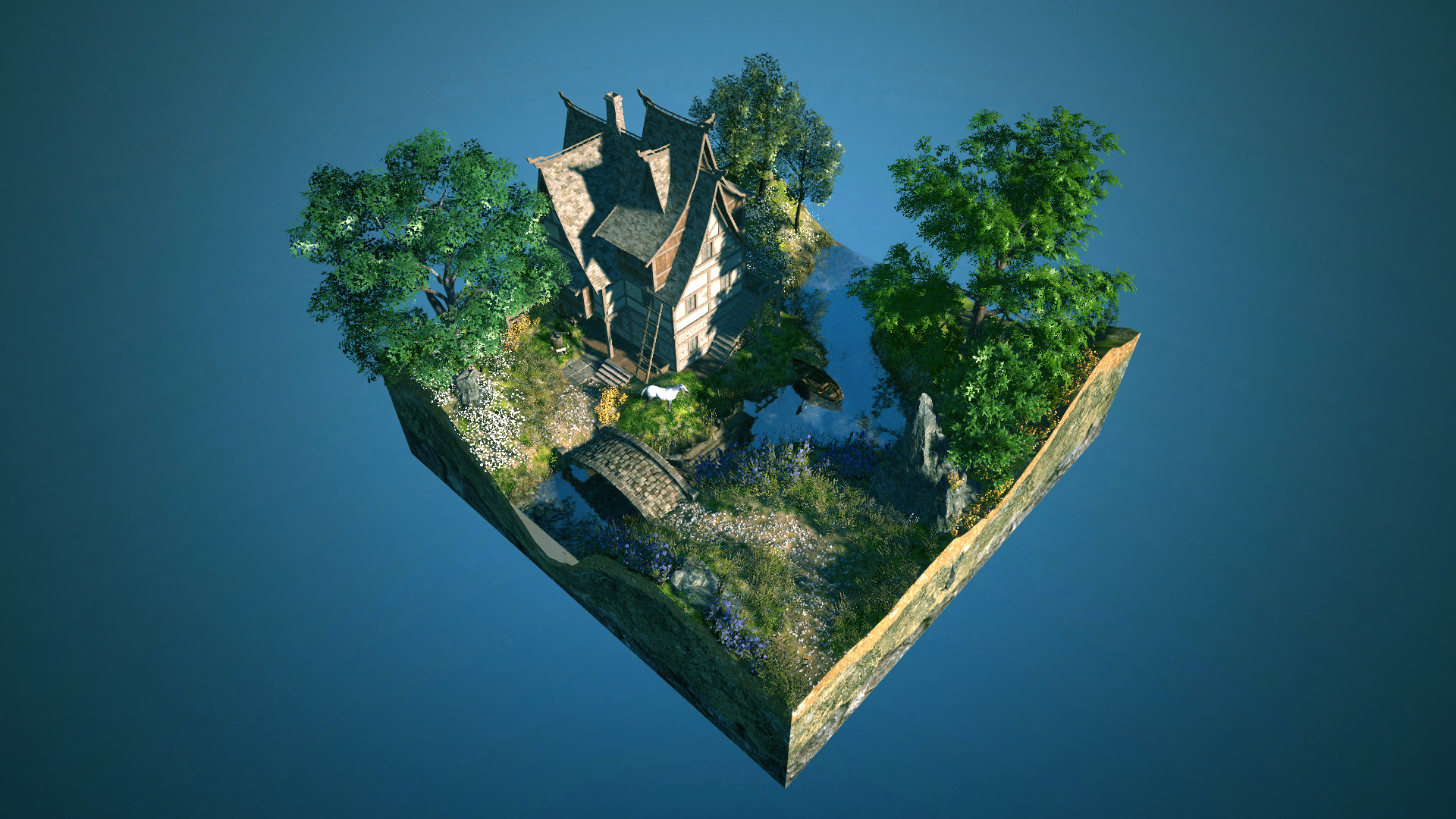
FlowScape lets you create 3D landscapes by clicking and painting with a library that includes trees, houses, forts, mountains, flowers, and critters. The interface is described as intuitive, and the results can be captured as high‑resolution screenshots, panoramas, or video recordings.
The tool also offers a top‑down view with optional square or hex grids for tabletop RPG maps, a selection of 4K textures and skies, ten ambient sound packs, and real‑time physics objects that react when dropped into the scene.
01 / THE GUIDE
Landscape Painting
The toolbar provides brush controls such as alignment to the terrain, size, flow, random leaning, and growth speed. Layers let you decide where each brush stroke appears, allowing you to separate foreground foliage from background terrain.
You can choose from twenty‑four 4K textures and an equal number of sky presets. Camera sliders give additional control over perspective, depth, and overall composition before you export the final image.
- Try different layer orders to keep foreground and background elements distinct.
- Adjust brush flow and random leaning for a more natural, less uniform appearance.
02 / THE GUIDE
Real‑Time Physics Objects
Rocks, logs, twigs and leaves can be dropped into the scene and will react with physics instantly, adding dynamic detail without manual positioning. The objects remain part of the scene when you capture screenshots or export panoramas.
These physics‑enabled items can be combined with painted terrain to create natural‑looking piles or scattered debris, enhancing the sense of depth in the final render.
- Use a mix of heavy and light objects to create varied visual interest.
- Observe how objects settle after dropping to decide if additional placement is needed.
03 / THE GUIDE
Texture and Sky Options
FlowScape supplies twenty‑four high‑resolution textures that can be painted onto any terrain surface using the brush tools. The textures can be painted onto terrain with the brush tools, supporting detailed ground work.
An additional set of twenty‑four sky presets lets you quickly switch lighting conditions, from sunrise to stormy clouds, influencing the overall mood and color balance of your landscape.
- Match sky time of day with texture tones for cohesive lighting.
- Swap skies after painting to see how different lighting affects the scene.
04 / THE GUIDE
Battle Map Mode
A top‑down view is available for tabletop RPGs, offering optional square or hexagonal grids. The mode supports image export from 2K up to 8K, suitable for printing or digital use.
The painting tools can be used to design terrain features, obstacles, and decorative elements before exporting the finished map.
- Enable the grid overlay while painting to keep obstacles aligned with squares or hexes.
- Export at the highest resolution you need to retain detail for large tabletop layouts.
05 / THE GUIDE
Importing Custom Models
Beyond the built‑in library, you can import your own 3D models using the OBJ format from external modelling programs. This expands the creative palette beyond the supplied assets.
Free community models are also available online, allowing you to integrate a wide variety of objects without creating them from scratch. Imported models can be positioned and adjusted within the scene using the standard placement tools.
- Check model scale before importing to keep proportions consistent with existing assets.
- Combine imported models with physics objects for added interactivity.


COMMUNITY
Player discussion