 GameWiki
GET YOUR BEARINGS
About Deskworm
Deskworm is a free‑to‑play desktop companion that reacts to every keystroke and mouse click. Each input makes the worm crawl a short distance while playing a soft sound, and it automatically turns when it reaches a screen edge.
The game supports solo play and online multiplayer, offers a Pomodoro timer and stretch reminders for focused work, and includes optional DualShock/DualSense controller support along with extensive visual customization.
01 / THE GUIDE
Desktop Interaction
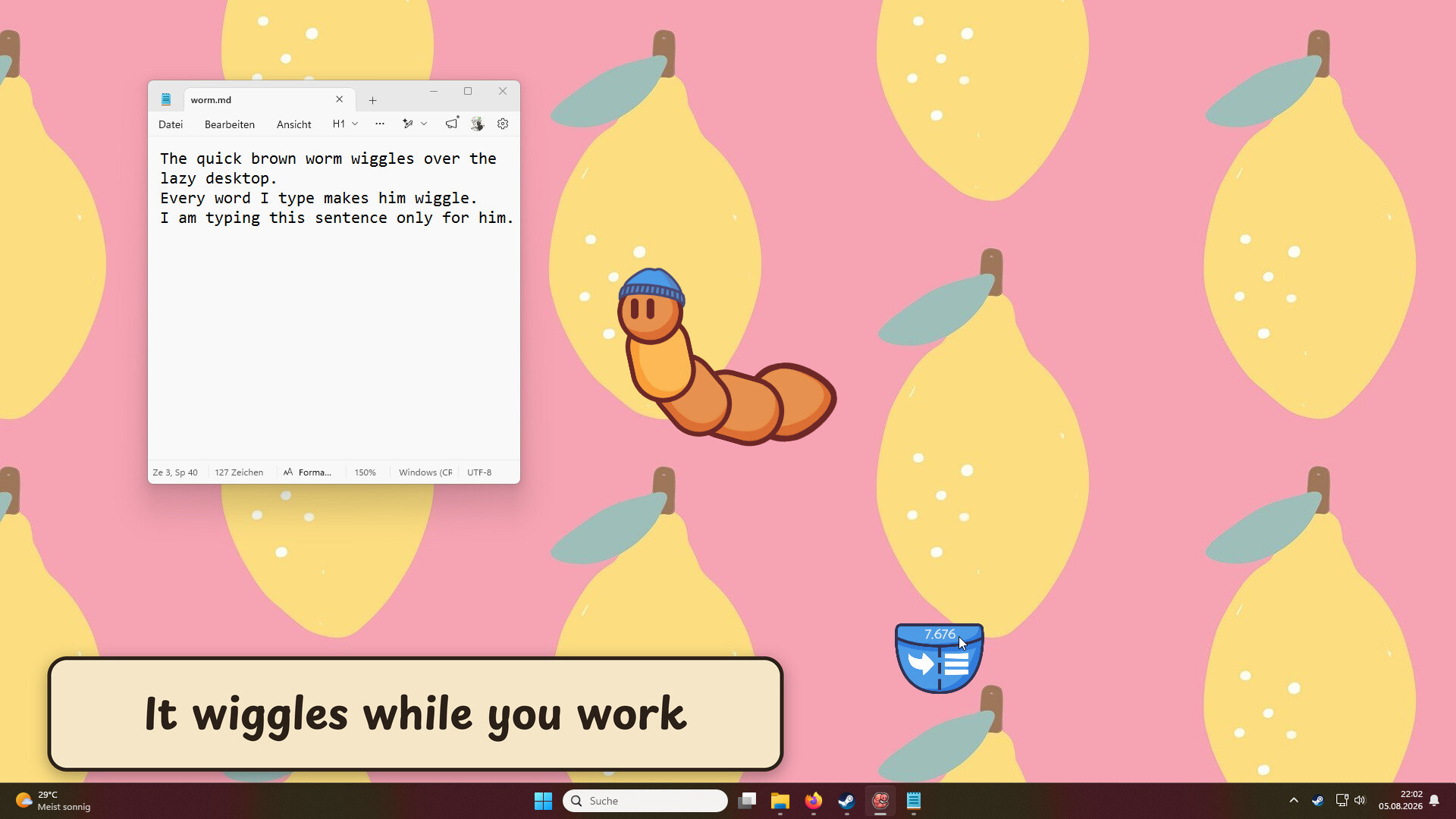
Every keyboard press or mouse click causes the worm to move a little farther, accompanied by a soft sound effect. The movement continues as long as input is supplied, providing a visible response to user activity.
When the worm reaches the edge of the screen it automatically turns and keeps crawling, ensuring it never disappears off‑screen and remains a constant visual presence.
- Try typing at different speeds to see how quickly the worm advances.
- Pause input briefly to watch the worm stop before it turns.
02 / THE GUIDE
Multiplayer Worms
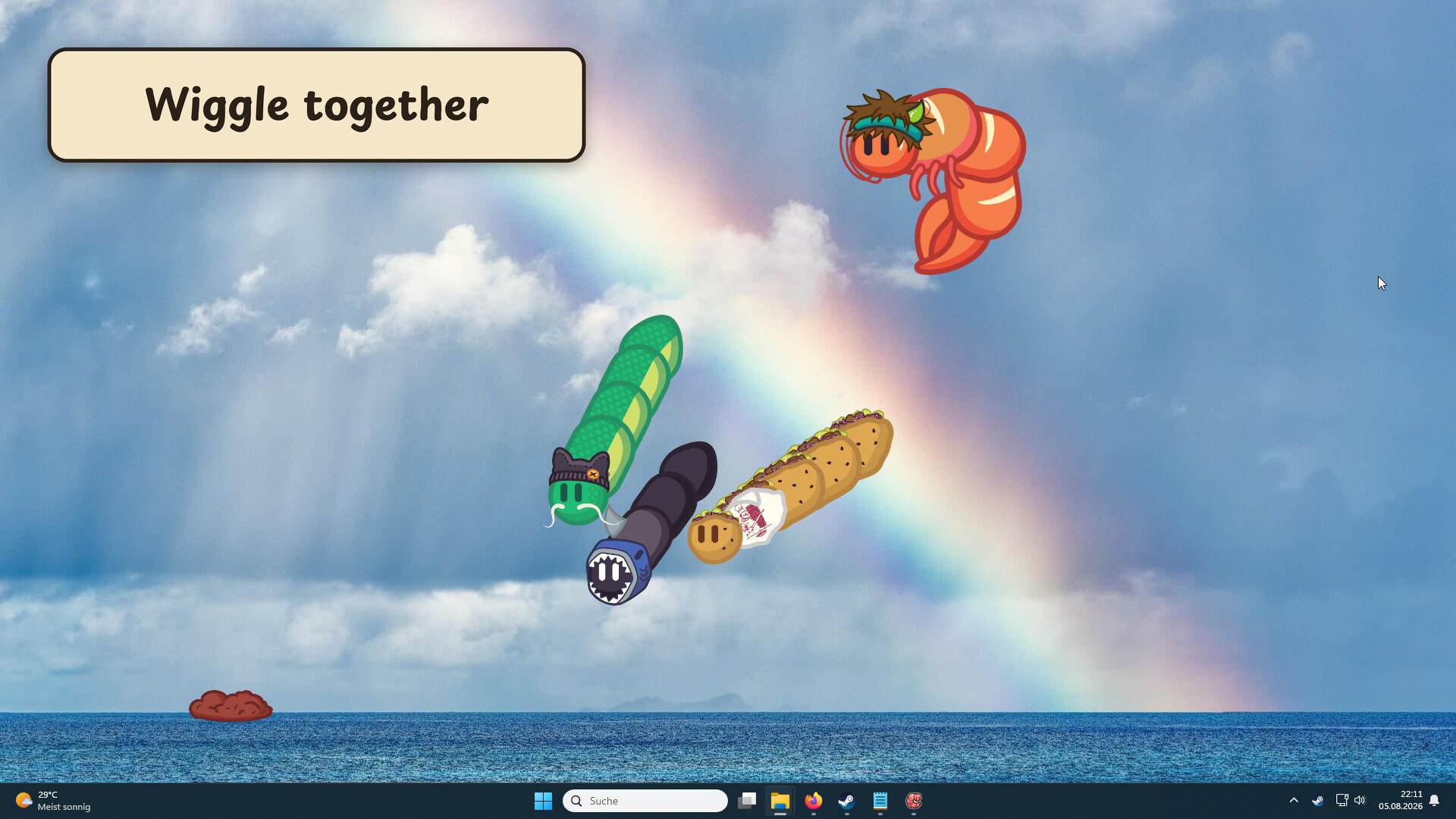
You can invite friends or join strangers so that multiple worms appear on the same desktop. All the worms crawl across your desktop together.
All worms share the same screen space and turn independently at edges, creating a shared visual environment without altering each worm’s basic behavior.
- Start with a small group to see how many worms fit comfortably on your screen.
- Observe that each worm moves only when its owner provides input.
03 / THE GUIDE
Pocket Mode
Pocket Mode confines the worm to a small pocket area on the screen. In this mode the worm’s head follows the mouse cursor while the rest of the body stays within the pocket.
The mode reduces overall movement, letting the worm stay visible without traversing the entire desktop, which can be useful during focused work.
- Enable Pocket Mode when you prefer a less distracting desktop pet.
- Resize the pocket to match the amount of screen space you want the worm to occupy.
04 / THE GUIDE
Items & Customization
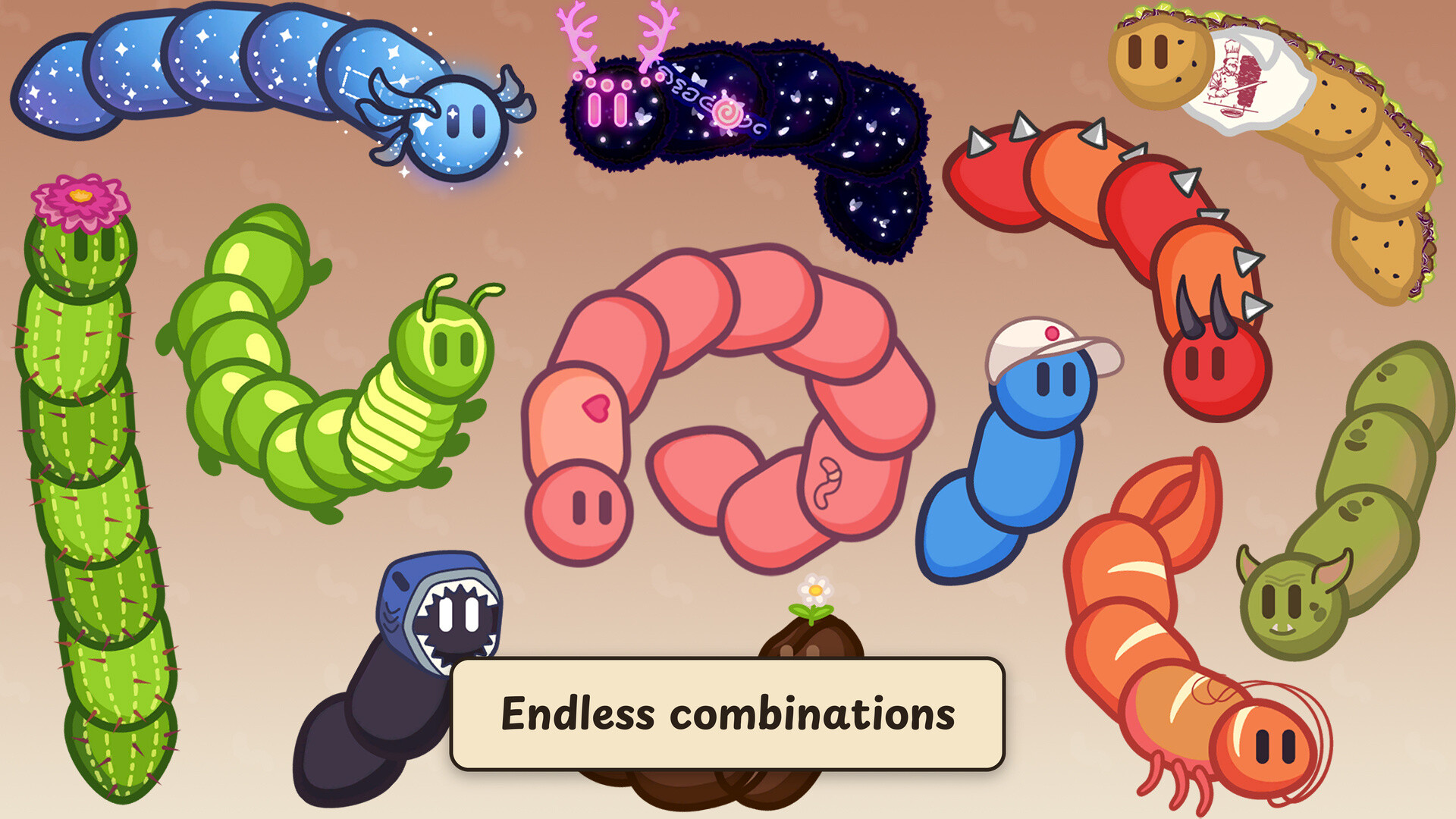
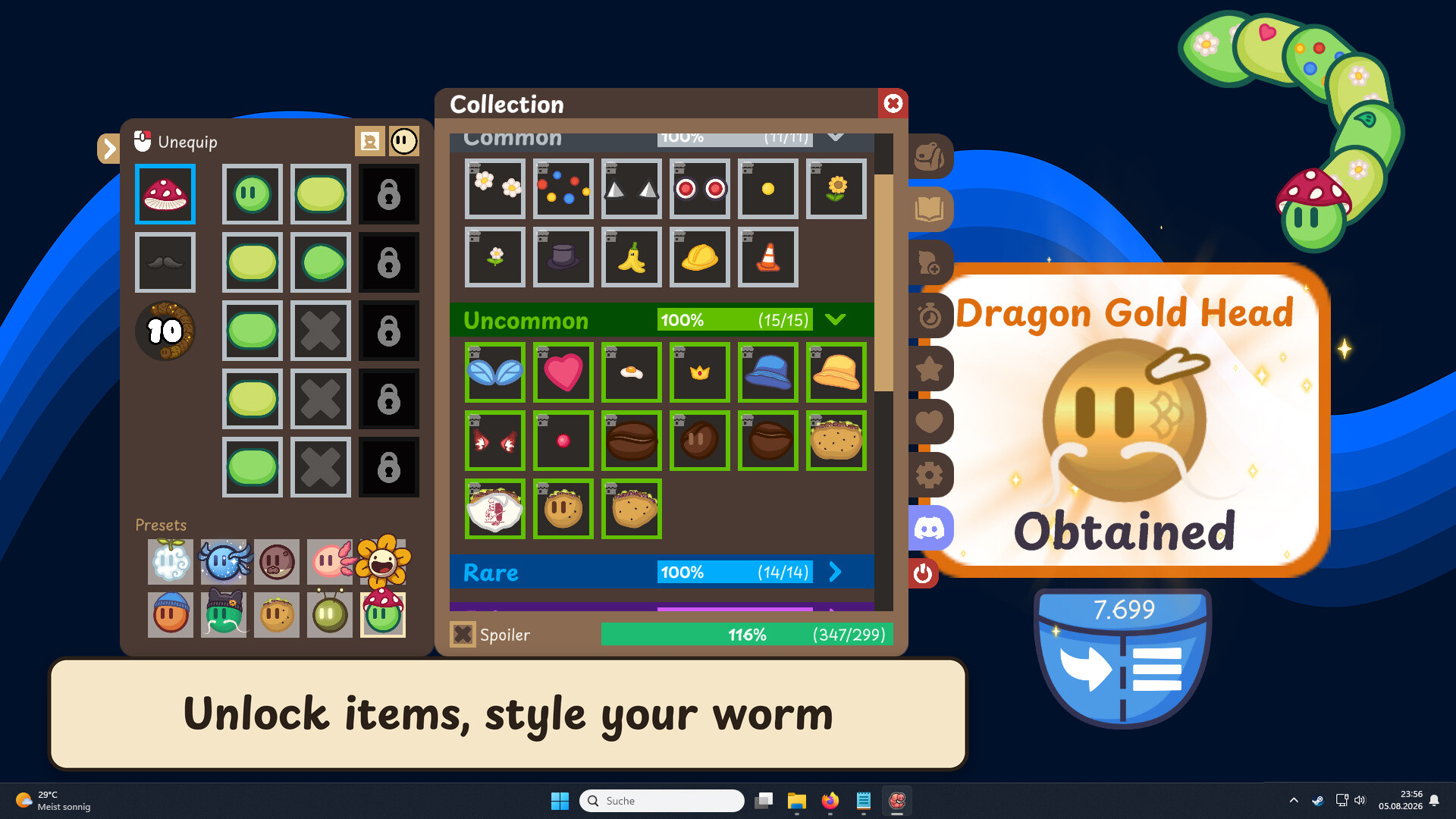
Typing and clicking earn points that can be spent on item drops, unlocking hats and skins of five rarity levels: Common, Uncommon, Rare, Epic, and Legendary.
Duplicate items of the same rarity can be combined to craft one from the next tier, and feeding items to your worm adds body segments so it slowly grows longer over time.
- Collect duplicate items to craft higher‑rarity gear.
- Feed items to observe how the worm’s length changes.
05 / THE GUIDE
Comfort Settings
The game lets you scale the worm from tiny to large and adjust pocket dimensions, allowing you to match the companion’s size to your workspace preferences.
Additional settings let you fine‑tune behavior and appearance, helping the worm feel cozy on the desktop during long sessions.
- Resize the worm so it does not obscure important windows.
- Adjust pocket size to keep the worm within easy view.
COMMUNITY
Player discussion