 GameWiki
GET YOUR BEARINGS
About Desktop Defender
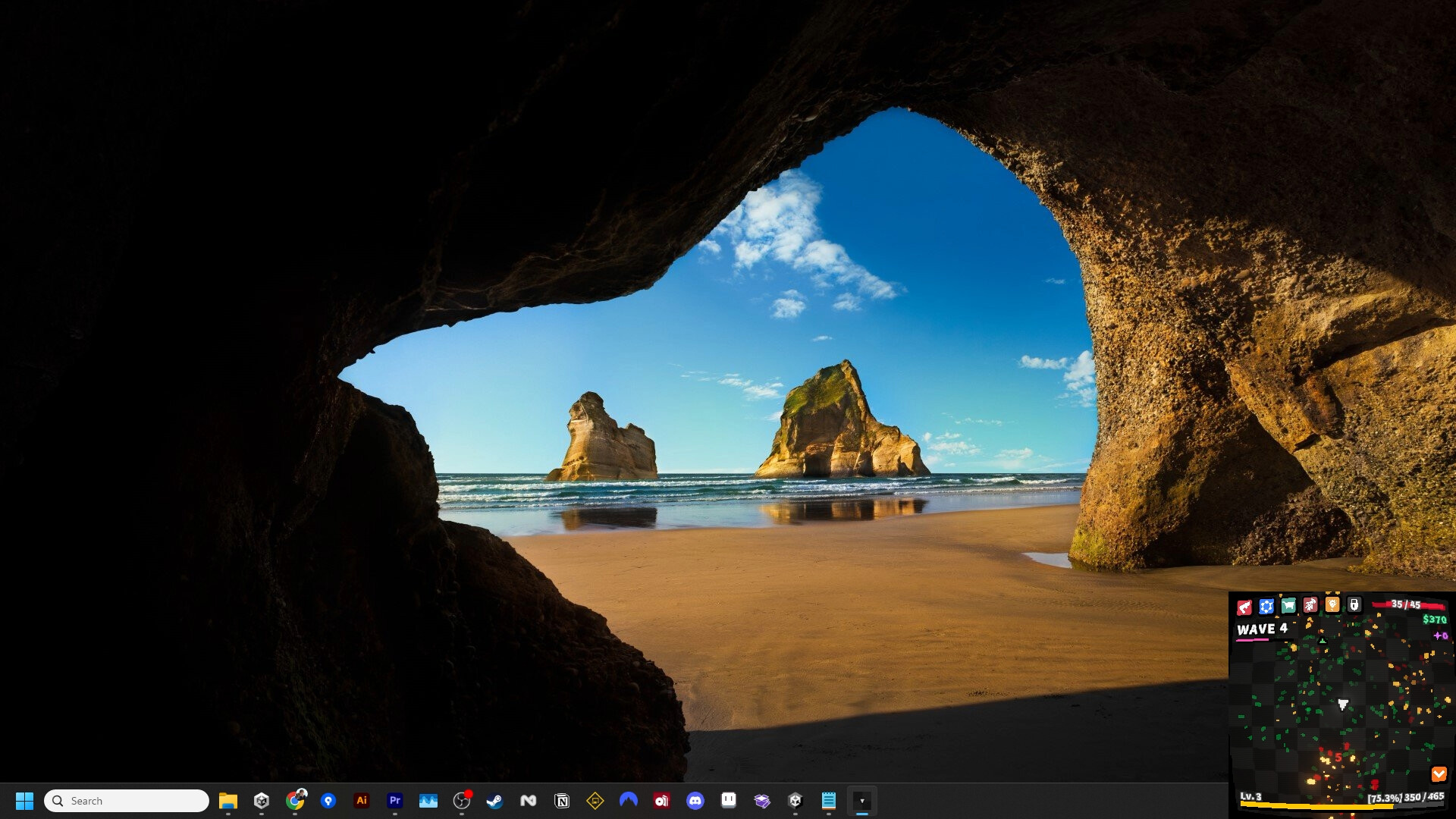
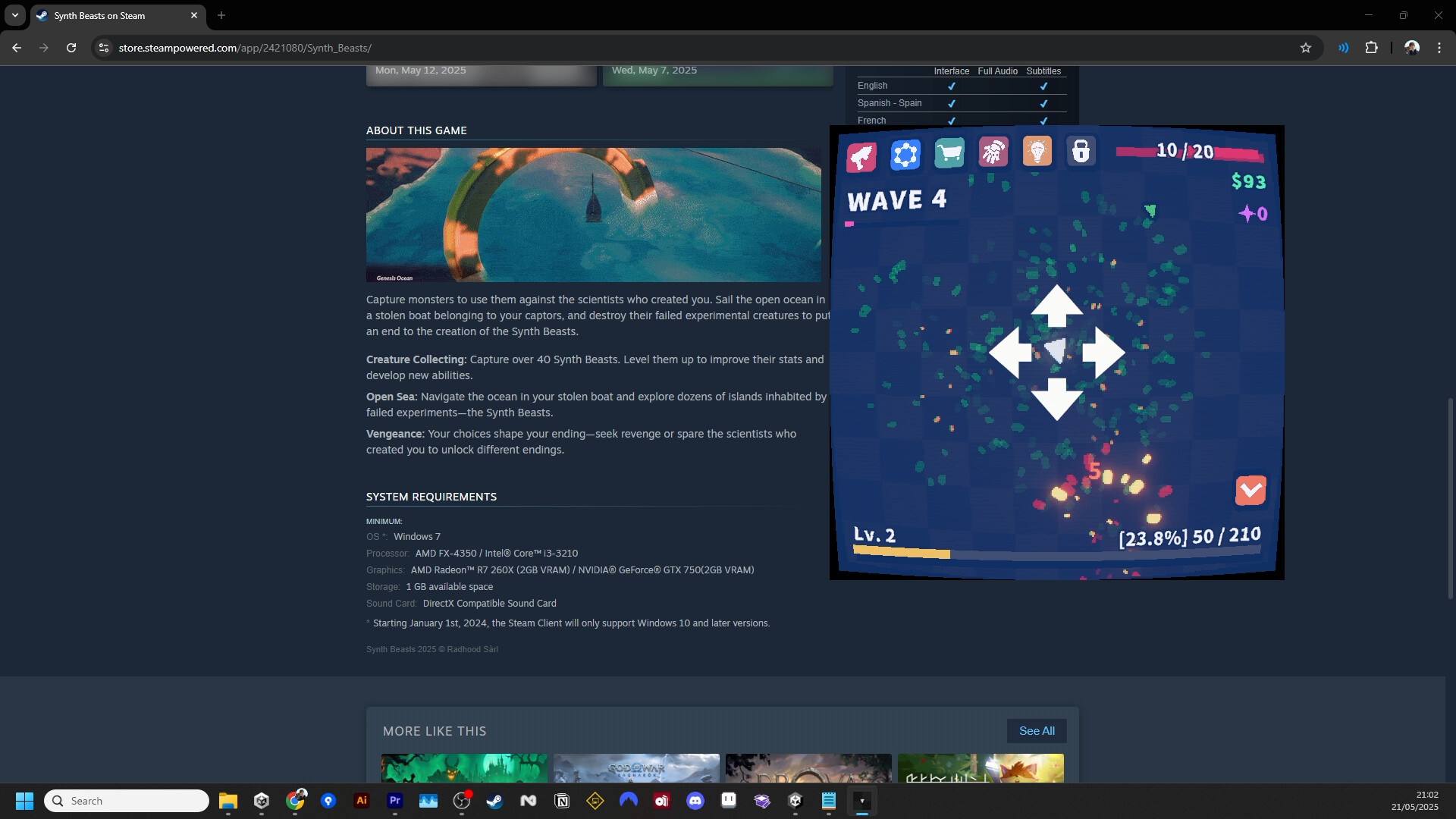
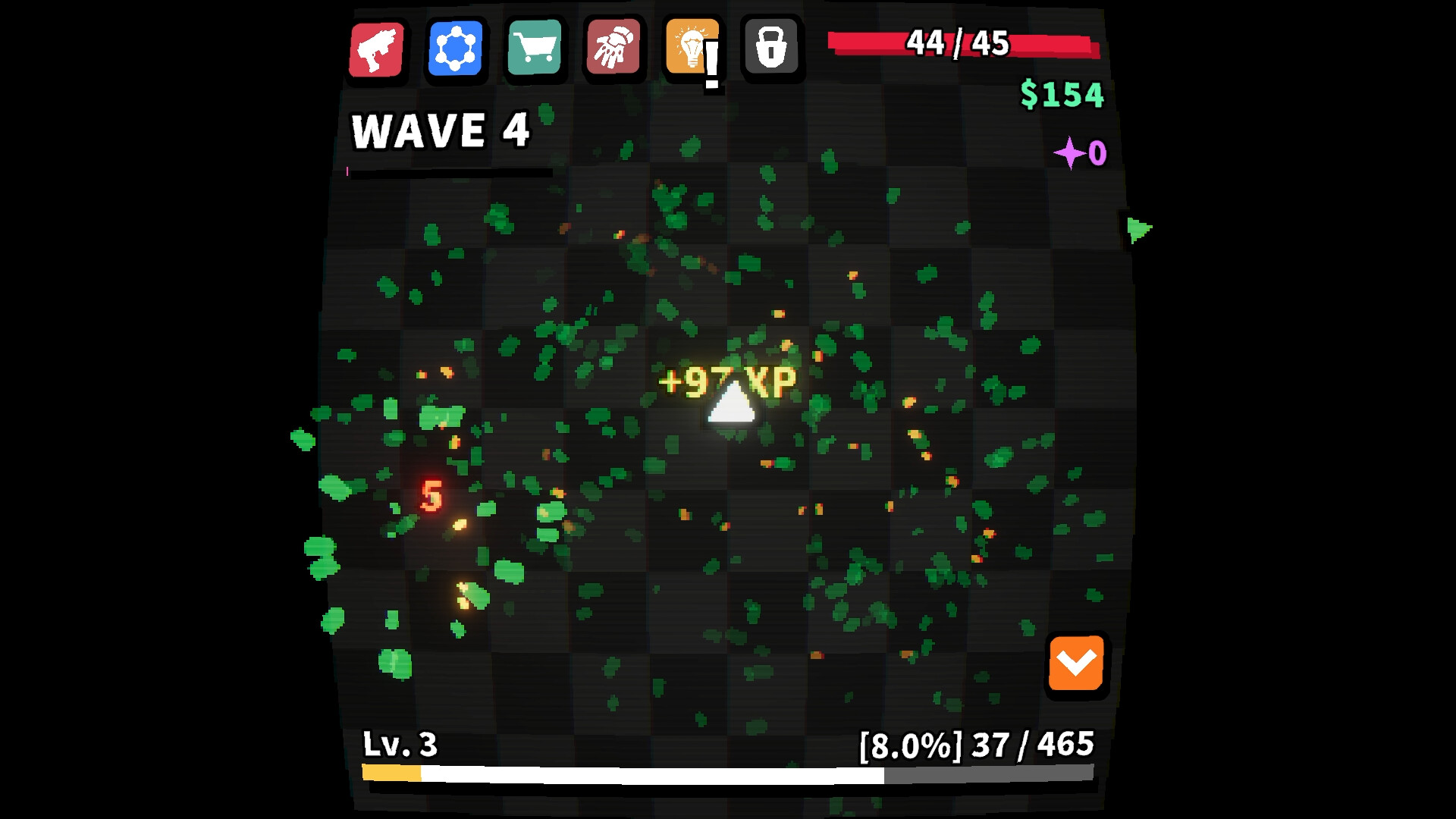
Desktop Defender is an idle auto‑battler that runs in a corner of your screen, letting you work, browse, or game while you defend a lone tower. Waves of enemies arrive endlessly, and you can upgrade the tower, collect loot, and reset runs to earn Ascendium for cross‑ascension upgrades.
The game offers a passive or active play style, with customizable size and position, and it supports mouse‑only, touch‑only, and custom volume controls. All progress can be saved anytime and is stored in Steam Cloud, allowing family sharing and achievement tracking.
01 / THE GUIDE
Idle Battleplay
Enemies arrive in endless waves, and your tower automatically attacks them while you go about other tasks. The game runs continuously in a small corner, staying out of the way.
You can choose to intervene actively or let the tower handle combat alone, letting the run progress without direct input. This flexibility lets you balance productivity with gameplay.
- Observe wave patterns to gauge when active intervention might be most effective.
- Let the tower auto‑attack during high‑focus work periods for a truly idle experience.
02 / THE GUIDE
Loot and Upgrades
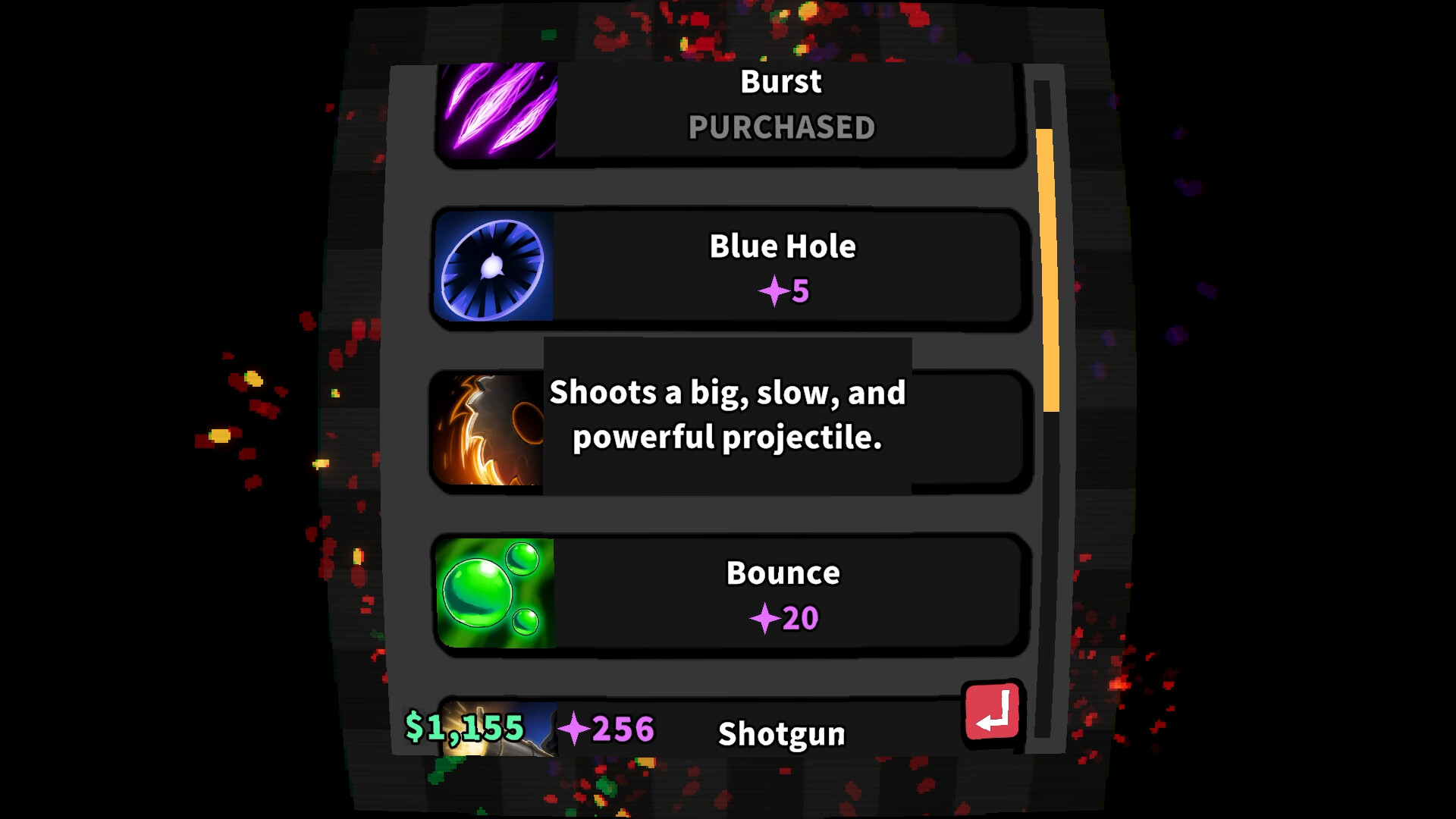
Defeated enemies drop rare gear that provides large bonuses, allowing you to equip powerful items and experiment with unconventional builds. Upgrades are permanent across ascensions, enhancing long‑term progress.
Collecting loot fuels your ability to level up, unlock new weapons, and gain permanent upgrades, creating a sense of growth even as runs reset.
- Prioritize gear with the biggest bonuses to maximize early run strength.
- Mix and match items to discover broken builds that surprise you.
03 / THE GUIDE
Ascension System
When you reset a run you earn Ascendium, which unlocks cross‑ascension upgrades that boost future progress. Each ascension deepens your overall power through cross-ascension upgrades.
The system encourages repeated play, as each reset provides resources that improve subsequent runs, creating a loop of growth and reset.
- Plan your Ascendium spending to target upgrades that complement your preferred gear.
- Use early ascensions to experiment with different upgrade paths.
04 / THE GUIDE
Customization Options
You can adjust the game’s size and screen position to fit your setup, helping it stay out of the way of other applications. Volume levels are also fully adjustable.
Both mouse‑only and touch‑only input modes are available, letting you choose the control scheme that best fits your device and preferences.
- Resize the window to a corner that stays visible but unobtrusive while you work.
- Test both input modes to see which feels more natural for quick interactions.
05 / THE GUIDE
Progress Saving and Cloud
The game allows you to save at any time, preserving your current run and upgrades. All saved data syncs with Steam Cloud, so you can continue where you left off on another device.
Family Sharing is supported, letting family members play on their own accounts while tracking their own achievements.
- Save before closing the game to ensure no progress is lost.
- Take advantage of Steam Cloud to switch between home and work computers.

COMMUNITY
Player discussion